iPhone showing the wrong time: how to fix it and check before taking check-in photos
Updated · 3 min read
Open Settings → General → Date & Time and turn on Set Automatically: the iPhone then takes its time from the network and picks the time zone from where you are. If that option is greyed out or off, or the time zone is wrong, the clock can drift, and every timestamped photo taken meanwhile carries the wrong time.
For check-in, acceptance or delivery photos, a few minutes off is enough to mark someone who was on time as late. Here is how to check and fix it.
Why is my iPhone showing the wrong time?
- Set Automatically is off and the clock was changed by hand, sometimes just for a game or to test an app.
- The wrong time zone: back from a trip abroad, or a city chosen by hand.
- The battery ran completely flat and the phone restarted without a network, so it has not synced yet.
- Date & Time is greyed out by Screen Time or because the phone is managed by an employer.
- Location Services is off for Setting Time Zone, so the zone does not follow you.
How do I set the right time on an iPhone?
- Open Settings → General → Date & Time and turn on Set Automatically.
- Turn on Wi-Fi or mobile data so the phone can fetch network time.
- If the option is greyed out: check limits under Settings → Screen Time; on a company phone, ask whoever manages the devices.
- Check the time zone: Settings → Privacy & Security → Location Services → System Services → Setting Time Zone should be on.
- Still wrong after that: restart the phone and update iOS.
How do I know the clock is right?
Compare it with another time source you trust: another phone set to automatic, or a website showing official time opened in Safari. A difference of a few seconds is normal. Several minutes means something was changed. Check whenever the phone has just run flat, come back from a trip or been used by someone else.
How does a wrong clock affect timestamped photos?
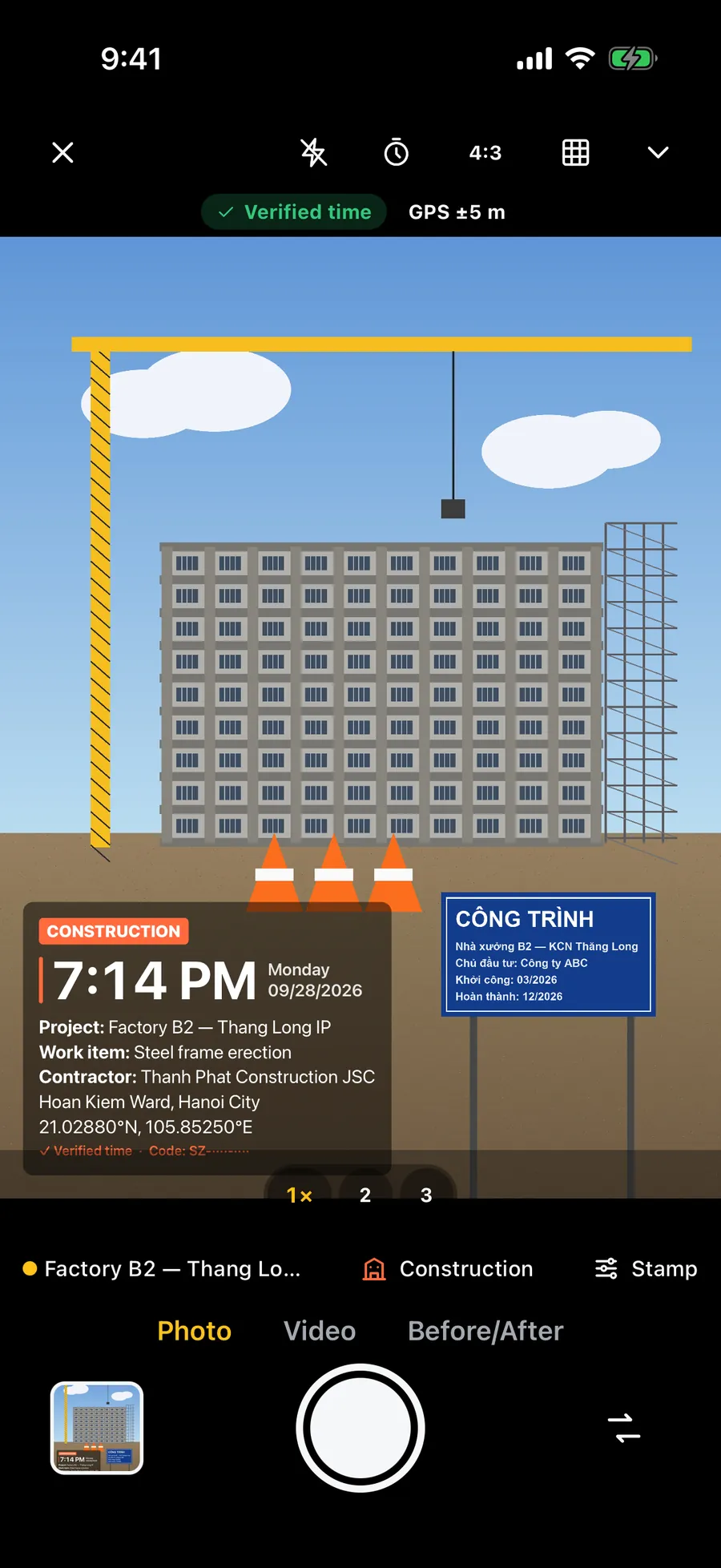
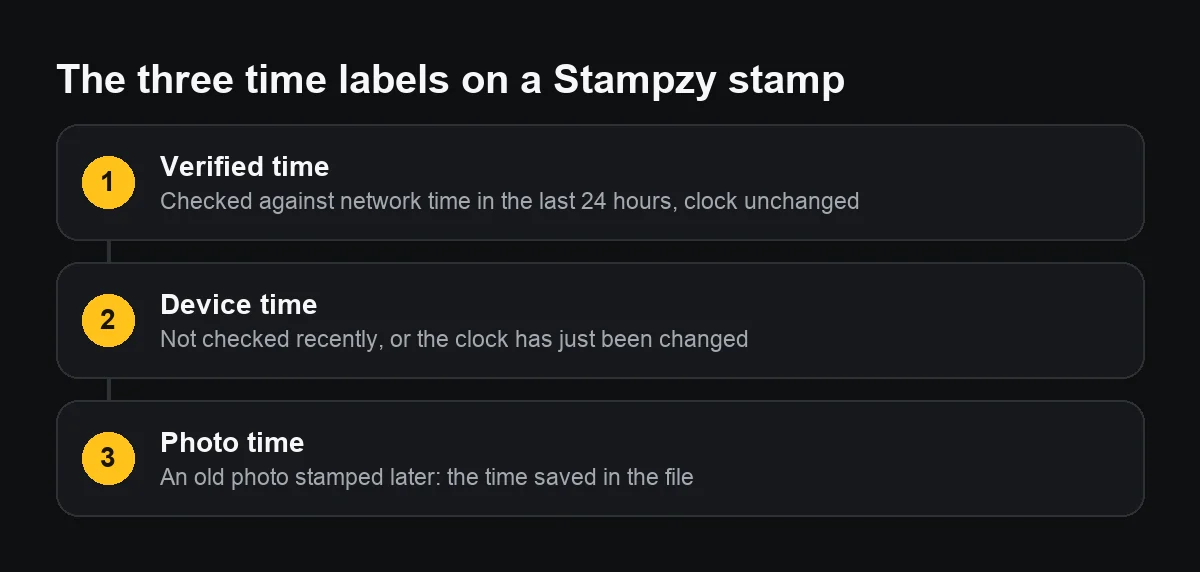
The iPhone Camera records the capture time from the phone's clock. So does a timestamp camera: the stamp is only as right as the clock it reads. A clock ten minutes slow prints a time ten minutes slow on every photo, and nobody looking at it can tell.
In an attendance group, agree that everyone keeps Set Automatically on, and query any photo whose time is clearly off from the time it was sent before counting the hours.
Can I fix photos already taken with the wrong time?
The time in the hidden data can be changed: open the photo in Photos, swipe up, tap Adjust. A time printed on the picture is part of the picture. The honest way is to leave it, say clearly “phone clock was 10 minutes slow” when you send it, and shoot with the right clock from then on. Never reshoot an old scene and present it as new.
What should a team agree on about clocks?
- Every phone used for work photos stays on Set Automatically, no exceptions.
- Anyone who changes their phone's time for personal reasons changes it back before work.
- Whoever compiles the timesheet compares the time on the photo with the time it was sent; beyond an agreed gap, say ten minutes, they ask rather than correct it themselves.
- Every correction on the timesheet gets a reason, so nobody wonders at the end of the month.
Clear rules from the start head off most arguments about hours.