Open the camera from the iPhone Lock Screen: the built-in ways and adding a timestamp camera
Updated · 3 min read
From the iPhone Lock Screen, the fastest way is to swipe left; there is also the Camera button in the corner, Control Center, the Action button on iPhone 15 Pro and later, and the Camera Control button on iPhone 16. Since iOS 18 you can also put other apps' controls on the Lock Screen, such as a timestamp camera.
For work that has to be captured now, a check-in, a delivery, an incident on site, the seconds spent unlocking and finding an app can be the moment you miss.
What are the ways to open the Camera while the phone is locked?
- Swipe left on the Lock Screen: the Camera opens at once.
- Touch and hold the Camera button in the bottom-right corner of the Lock Screen.
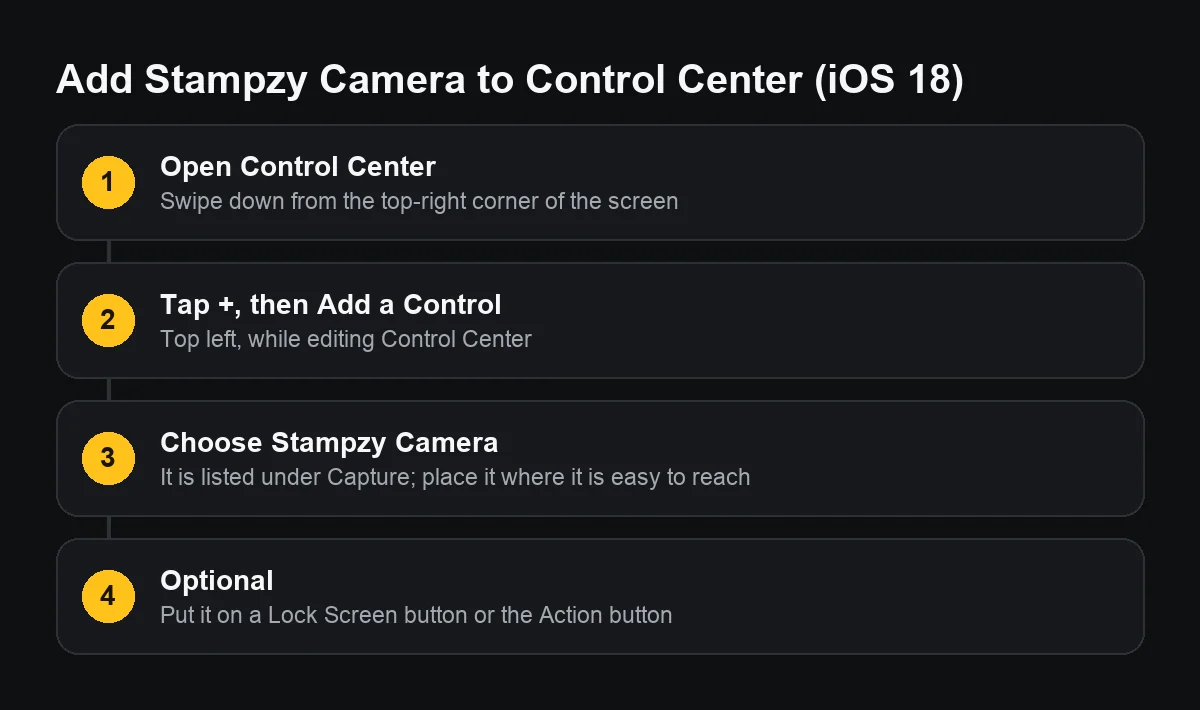
- Open Control Center by swiping down from the top-right corner, then tap the Camera button.
- On iPhone 15 Pro and later: set the Action button to Camera in Settings → Action Button.
- On iPhone 16: press the Camera Control on the side.
Names and positions can differ slightly with the model and iOS version.
Is opening the camera from the Lock Screen safe?
While the phone is locked, anyone holding it can take photos, but they only see the photos taken in that session, not your library. Viewing older photos or sharing requires unlocking. If you would rather nobody could use the camera while locked, you can turn the Camera off under Screen Time restrictions, but then you lose the shortcut too.
How does iOS 18 let me change the Lock Screen buttons?
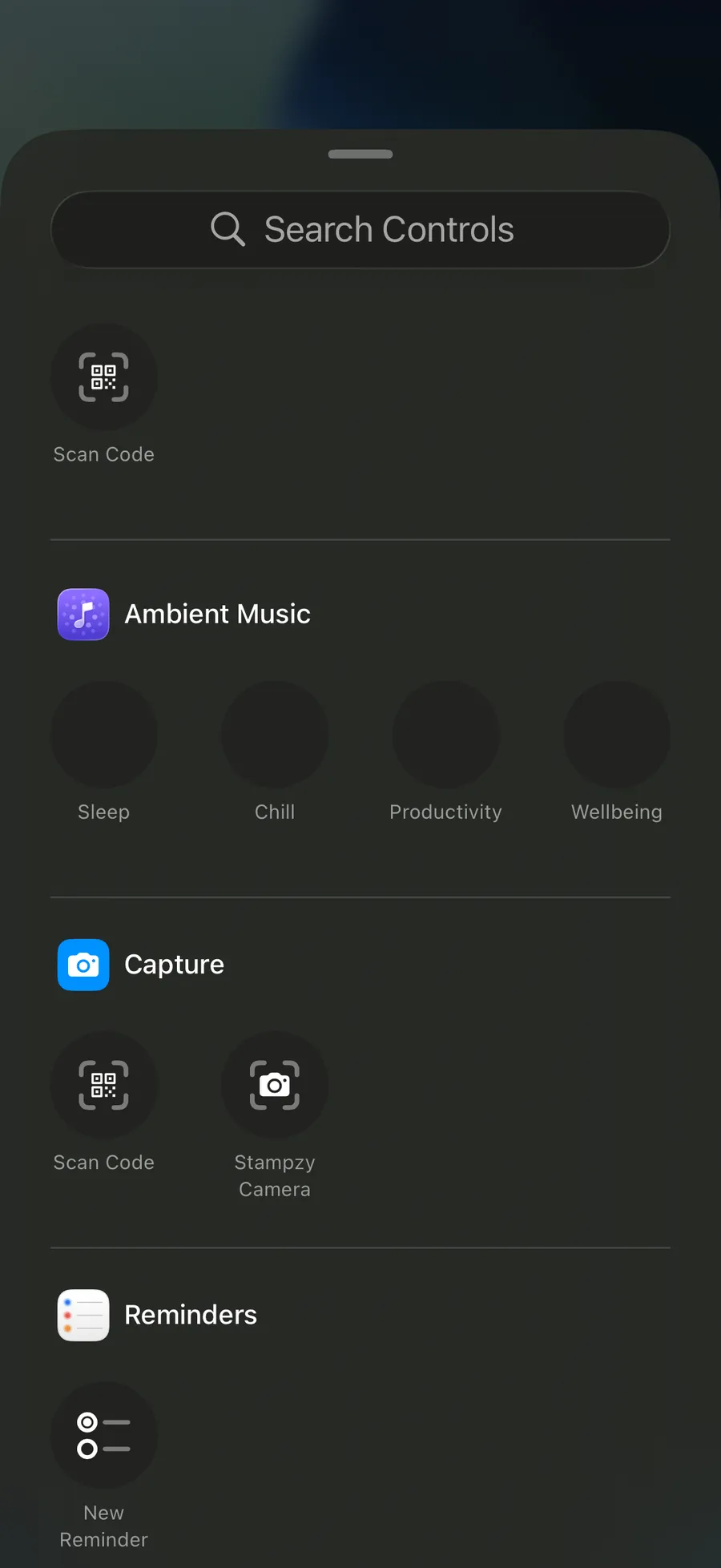
Since iOS 18, the two buttons at the bottom of the Lock Screen and the buttons in Control Center are called controls, and they can be swapped. Touch and hold the Lock Screen, tap Customize, choose the Lock Screen, then tap the minus on an existing button and the plus to pick another control. Third-party camera apps can offer their own control, listed under Capture.
Do photos taken from the Lock Screen have the date and location?
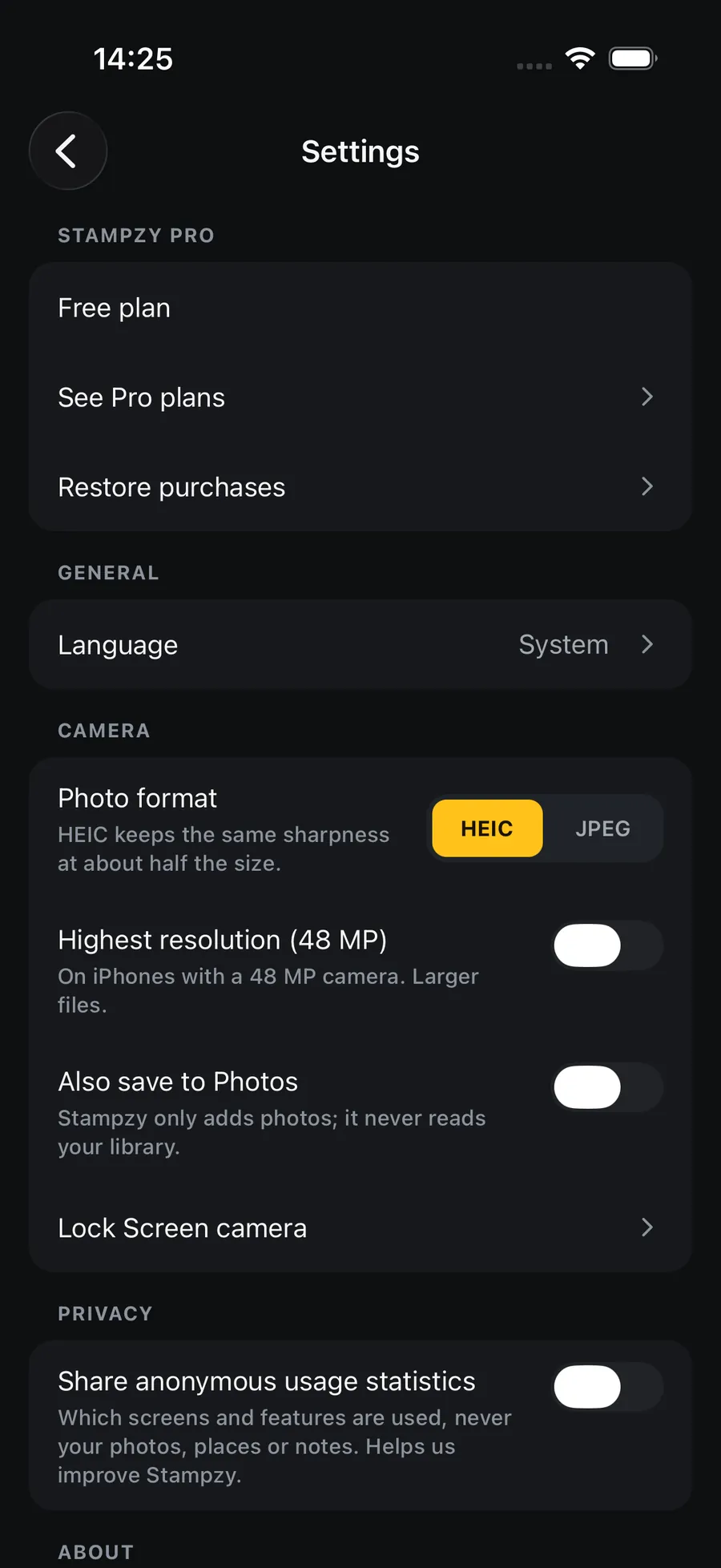
With the iPhone Camera, photos taken while locked still store the time and location in hidden data like any other photo, if the Camera may use Location Services. Nothing shows on the picture. If the recipient needs to see the date and place, use a timestamp camera that supports the Lock Screen, or add the details after unlocking.
Tips for shooting fast without getting it wrong
- Put the camera shortcut you use for work where it is easiest to press, not among ten other buttons.
- Keep the clock on Set Automatically, because a rushed photo still carries that clock's time.
- After a burst of quick shots, unlock and look through the day's photos to make sure none are blurred or of the wrong scene.
Which shortcut suits work best?
- Swipe left: the fastest, but it always opens the iPhone Camera.
- A Lock Screen button: can be switched to the camera you use for work, pressed one-handed.
- The Action button: good if you wear gloves or hold something in the other hand, because you can press it without looking.
- Control Center: the place for cameras you use less often, so they do not take a Lock Screen button.
Pick one and use it every day; once it is muscle memory you no longer think about it.