How to remove the location from photos before you share them on iPhone
Updated · 4 min read
To remove the location from an iPhone photo before sharing it, open the photo in Photos, tap Share, tap Options at the top of the share sheet, switch Location off and send it. The setting applies to that one send only, and it removes the location stored in the file, not an address or coordinates printed on the picture itself.
A photo taken at home tells anyone who can read its data where you live. That is why this question comes up before posting to a marketplace, a forum or a group chat. This guide covers the one-time switch, how to clear the location from a photo for good, how to stop new photos from carrying it, and the less obvious ways a photo still gives away a place.
How do I remove the location when I share one photo?
1. Open the photo in the Photos app. The switch is not offered when you share from other apps.
2. Tap the Share button.
3. Tap Options at the top of the share sheet, under the photo's name.
4. Switch Location off. The line at the top of the sheet should change to “No Location”. Check that All Photos Data, if shown, is not switching the location back on.
5. Tap Done and send the photo with the app you want.
This only changes the copy that leaves your phone. The original in your library keeps its location, and you have to repeat the steps every time. The exact wording of the sheet depends on your iOS version, so look for the Options button near the top.
How do I clear the location from a photo in my library?
Open the photo, swipe up (or tap ⓘ) to see its info, then tap the map or the place name and choose No Location. Unlike the share sheet, this changes the photo in your library, so the place is gone for every later send, and for Photos' own search by place. On some iOS versions the same screen offers Adjust, which lets you pick a different place instead of removing it.
If you plan to send many photos, select several in the grid, tap Share and use Options once; the setting applies to the whole selection.
How do I stop new photos from being tagged with a location?
Go to Settings → Privacy & Security → Location Services → Camera and choose Never. New photos taken with the iPhone Camera then carry no place. The cost is that Photos can no longer group or search your pictures by place.
This setting belongs to the Camera app. A different camera app has its own location permission, and it can store a place in its photos even when the iPhone Camera does not. If you want a camera that never records one, check what that app asks for in Settings → Privacy & Security → Location Services.
What if the place is printed on the picture?
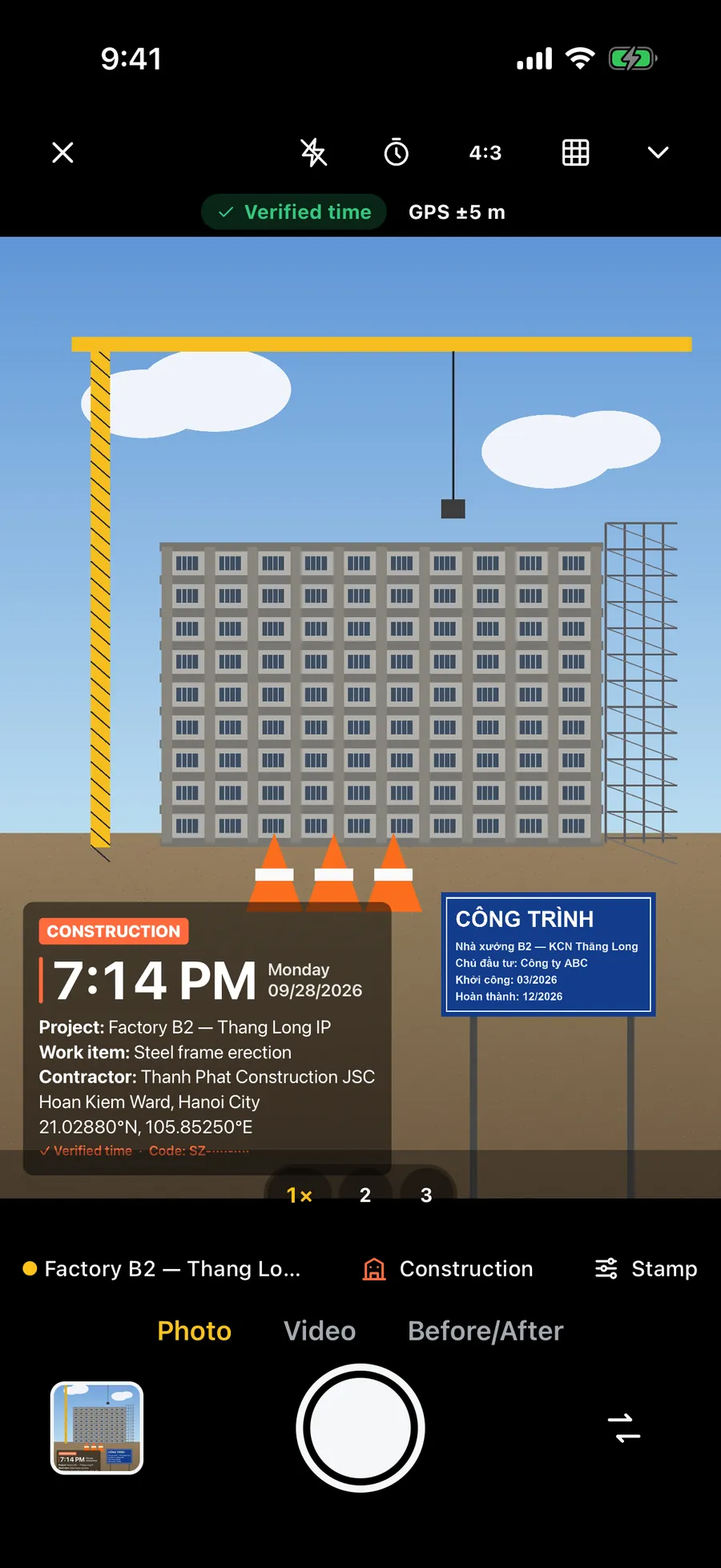
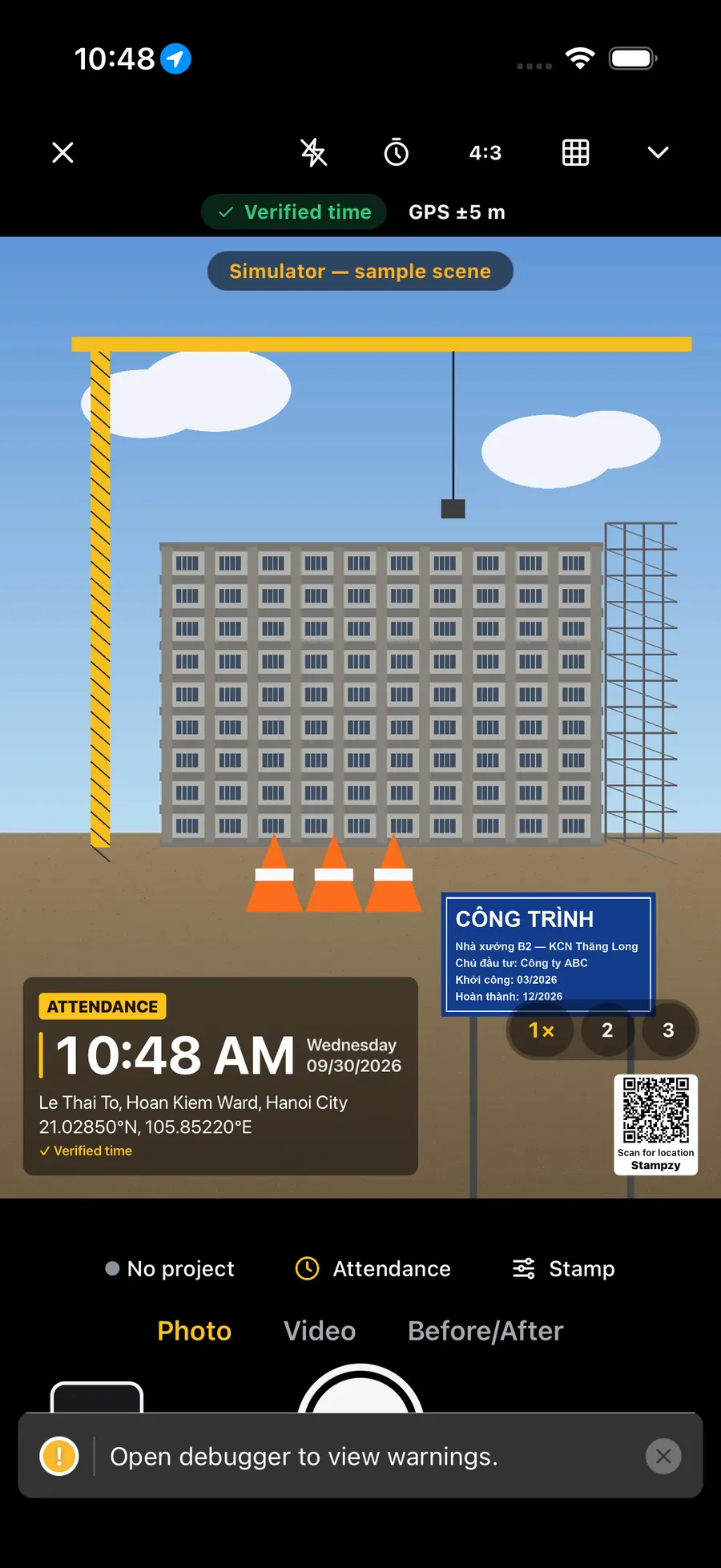
Removing the location from a file's data does nothing to text that is part of the image. A photo with an address or coordinates stamped in the corner shows them to everyone, and so does a house number in the background, a street sign, a delivery label or a view from the window.
Before posting publicly, look at the picture the way a stranger would: a plate number, a school uniform, a street name, a distinctive building. If the photo's job is to show where something is, such as a delivery or a site visit, keep the place visible on purpose. If it is not, crop or cover the parts that identify it, or choose a stamp without an address or coordinates.
Do chat apps remove the location for me?
Often, but not always, and you cannot count on it. Many messaging apps recompress photos and drop the location, yet sending a photo as a file or a document usually keeps the original data, and some services keep it for a while on their side. If the location matters to you, switch it off in the share sheet first, then send; do not rely on the app to do it.
To check the result, send the photo to yourself, open it on another device and look at its info: if a map appears, the location survived.
Frequently asked questions
- Does turning Location off in Options change the original photo?
- No. It only changes the copy you send. The photo in your library keeps its location until you choose No Location in the photo's info.
- Why is there no Options button when I share from another app?
- The Location switch is part of the share sheet in Photos. If you attach a photo from inside another app, it may still carry its data, so start the share from Photos.
- Will the person I send it to see where I took the photo?
- Not from the file's data if Location was switched off. They can still see anything on the picture itself, such as a printed address or coordinates, a street sign or a recognisable building.
- Does a Stampzy photo contain my location?
- The address and coordinates you choose to print are on the picture, and when the phone has a GPS fix the saved file also carries it in its data. Switch Location off under Options in the share sheet to remove the data, and turn off the Address and Coordinates lines in the stamp to keep them off the picture.