Recording video with the date and time on iPhone: the iPhone Camera vs Stampzy
Updated · 3 min read
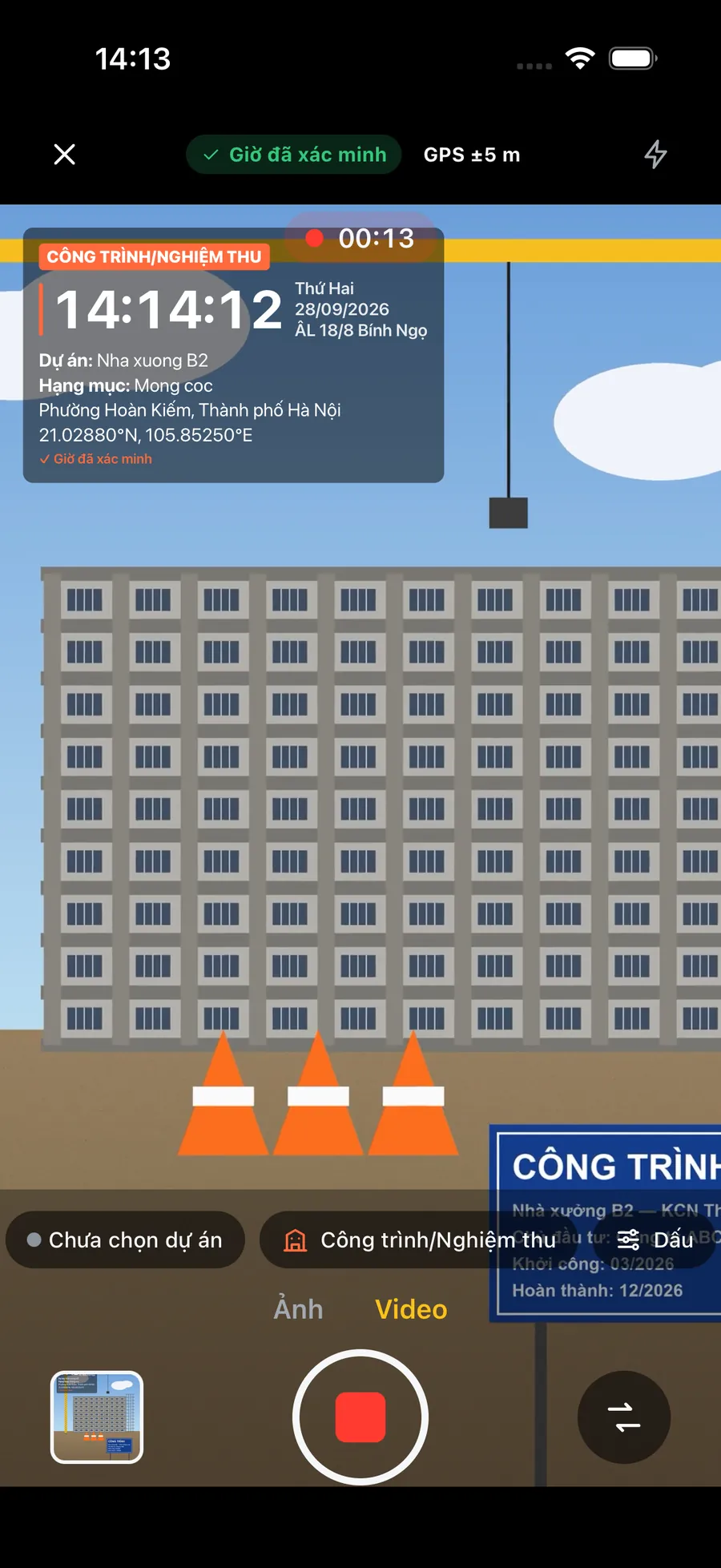
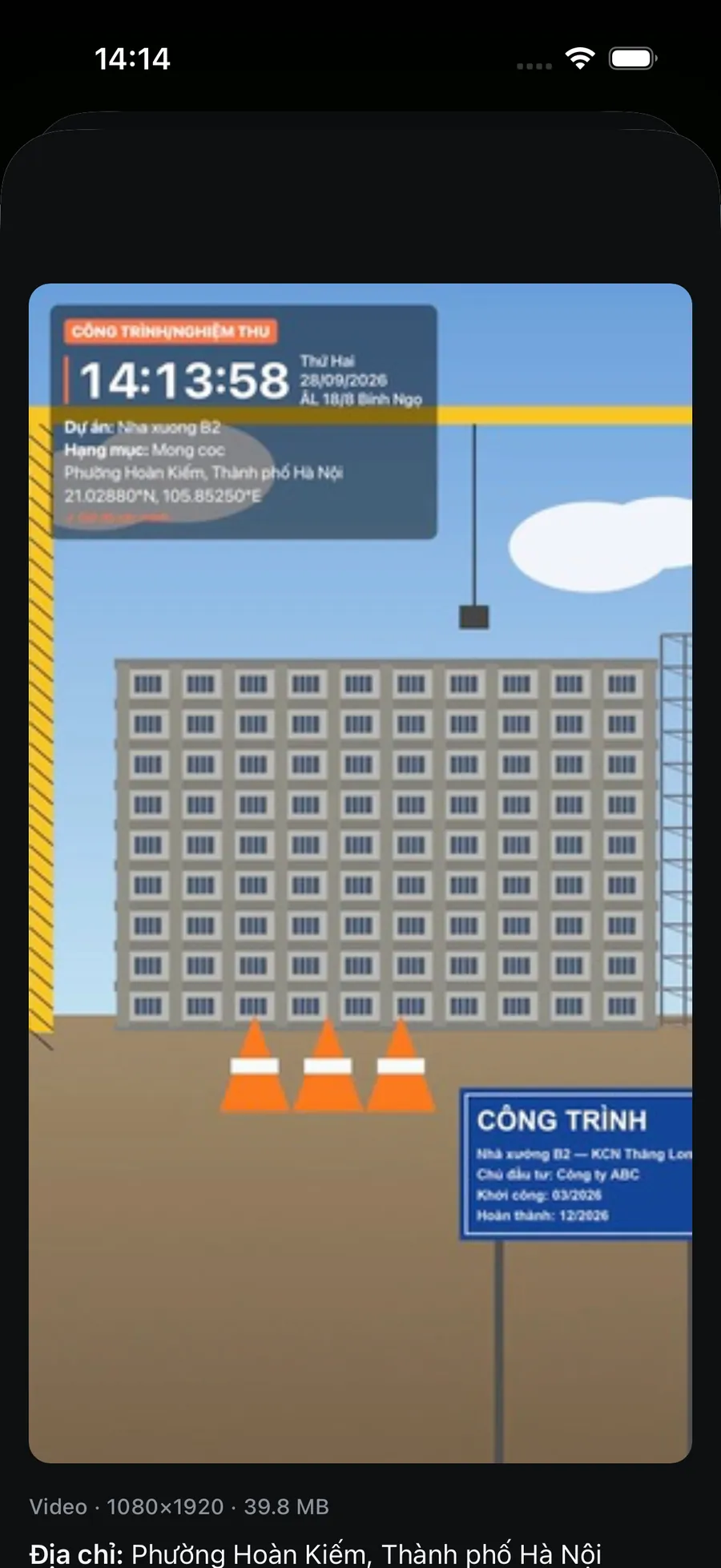
The iPhone Camera does not draw the date or time onto video: when a clip was recorded is stored only in the file's hidden data, which the Photos info panel shows. To make the time visible in the frame you can either record it yourself with a few simple tricks, or use a camera that burns a clock ticking every second into the video, such as Stampzy.
This guide compares the two and shows what to do if you would rather not install anything.
Where does an iPhone video keep its date and time?
Open the video in Photos and swipe up, or tap ⓘ: you see when recording started, the resolution, the file size and the location if the Camera may use Location Services. As with photos, these can be edited from the same panel, and they are often stripped when the video goes through a messaging app or gets recompressed.
There is no clock in the frame. Someone who receives a clip in a chat knows when it was sent, not when it was recorded.
How can I put the time into a video without a special app?
Three tricks that work with the built-in Camera:
- Start the clip on a clock: film the Lock Screen of another phone, or a wall clock, then pan to the scene without stopping.
- Say the date, time and place aloud in the first second: “Ten fifteen, 28 September, Factory B2, Hoan Kiem ward.”
- Record in one take, without cuts. One continuous clip is easier to trust than three joined together.
You can also add the date as a title in a video editor afterwards, but that text is typed by you, so it is only as accurate as your memory.
How do they compare?
The iPhone Camera (with the Photos info panel) against Stampzy's Video mode:
| Criterion | iPhone Camera + Photos info | Stampzy (Pro) |
|---|---|---|
| Clock in the frame | None | Yes, ticking every second for the whole clip |
| Address and coordinates on the video | No, hidden data only | Yes, from the chosen stamp template |
| Work notes | No | Project, work item and note lines |
| Still there after a chat app | Location and original time often stripped | Yes, drawn into every frame |
| Sound | Yes | Yes |
| Resolution | Up to the phone's maximum | 720p, 1080p; 4K and 60 fps where the iPhone supports them |
| Cost | Free | Part of Stampzy Pro |
When does a video really need the time on it?
- Showing a newly installed unit running: an air conditioner, a pump, a roller door.
- Recording the condition of a flat or a car before taking it over.
- Work that unfolds over time: a concrete pour, a pipe pressure test.
- Unboxing a high-value delivery when it arrives.
When only the result matters, a stamped photo is usually shorter to watch and easier to send than a long video.
How do I record a timestamped video that is easy to use?
- Keep clips short, under a minute if you can; chat apps and email compress large files hard.
- Hold the phone sideways for wide scenes; keep it steady and move slowly.
- Name or note the clip right away, before it gets mixed up with others.
- Keep the original on the phone or in a backed-up folder; the copy sent through a chat app is compressed.
- Keep the iPhone clock on Set Automatically, because every method relies on it.
What does a timestamped video prove?
Like a photo, a video with a clock is the recorder's own record: clear and easy to check, but not a tamper-proof certificate and no substitute for signed minutes. When a video is for a handover or a complaint, send it to the other side early so both of you hold a dated copy.